

Excel to PDF Converter
Convert your Excel files (.xlsx, .xls) to PDF format quickly and securely. No registration required.
Drag & Drop Your Excel File
or
Supports .xlsx, .xls, and .csv formats • Max file size: 50MB
Excel to PDF quickly and securely with our 100% free, easy-to-use tool—designed to boost your productivity without any hassle.
The Tools You Use To Improve Productivity – All Are 100% Free And Easy To Use
Have you ever made a cool list, chart, or schedule in Excel and needed to share it as a PDF? Maybe it’s your science project data, your weekly reading log, or even your pet’s feeding schedule! That’s where an EXCEL to PDF Convert tool saves the day—and it’s totally free!
With an EXCEL to PDF Convert tool, you only drag your file onto the website, click one button, and—just like that—your Excel sheet becomes a clean, neat PDF. Not confusing steps. No downloads. No passwords. It works right in your browser, you can do it from school, home, or even the library!
Why turn Excel into a PDF? Because PDFs stay exactly how you made them. If you color-code your homework tracker or line up your soccer team stats just right, a PDF keeps everything in place. Your teacher or coach will see it the same way you do—no weird shifts or missing boxes. That’s why using an EXCEL to PDF Convert tool helps you look organized and proud of your work.
Best of all, you can use these tools as many times as you want. Got five Excel files? Convert them all! Need to send your book report table to your teacher? Done in seconds. These tools are built for real life—fast, friendly, and always free. There’s no “premium” version hiding behind a paywall. Everything is 100% free and made for people like you who want to get things done without stress.
And don’t worry—you don’t need to be a computer whiz. If you can click a mouse or tap a screen, you can use an EXCEL to PDF Convert tool. It’s that simple! Plus, your files stay private. The website doesn’t save your work, and no one else can see it. You upload, convert, download, and go!
When you use smart tools like this, you become more productive. “Productive” means finishing your tasks quickly so you have more time for fun—like playing games, drawing, or building LEGO sets. Free tools help you work smarter, not harder.
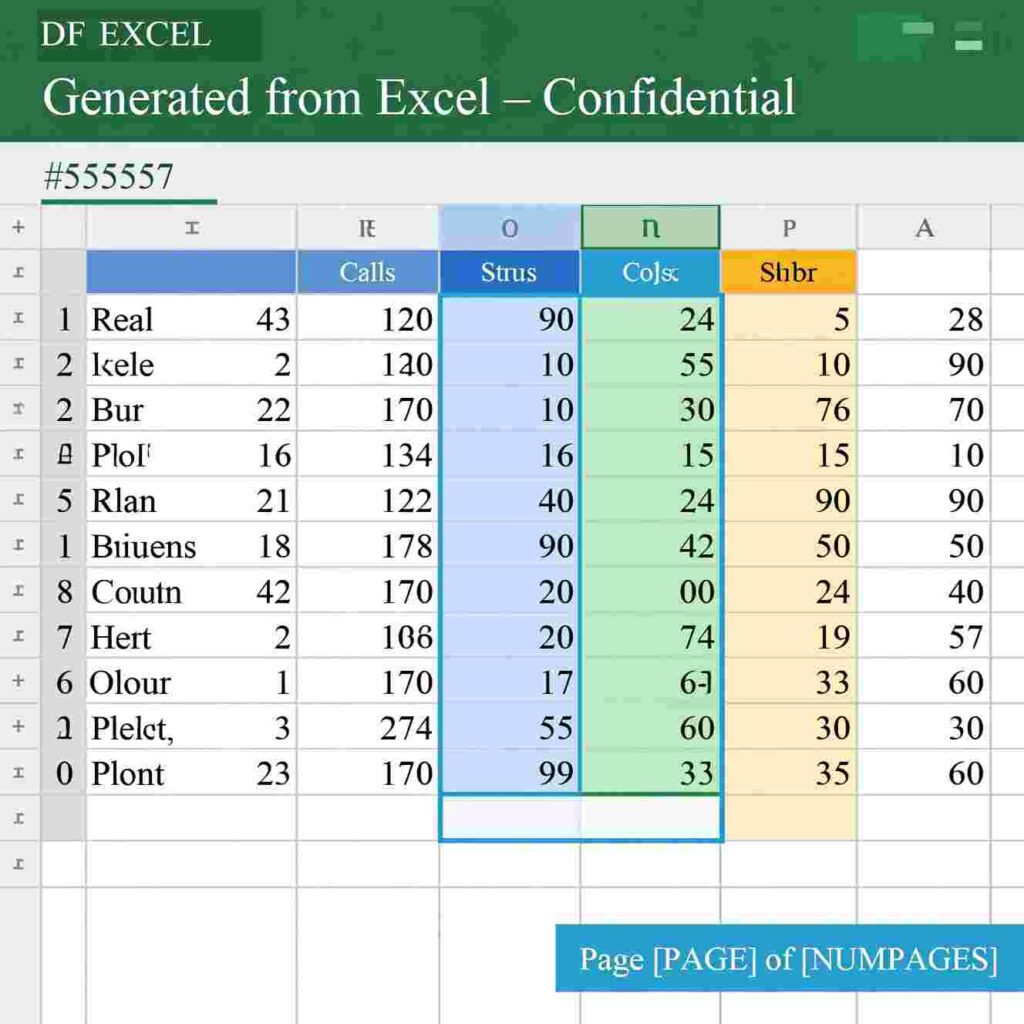
So next time you finish something awesome in Excel, remember: one quick conversion turns it into a share-ready PDF that looks sharp and professional. No stress. No mess. Just your great work, ready to go!
Stay curious. Stay creative. And keep using free tools that help you do your best—everyEXCEL to PDF, EXCEL to PDF Convert tools to boost productivity—no cost, no signup, just simple and quick conversions. The Tools You Use To Improve Productivity – All Are 100% Free And Easy To Use
Have you ever made a cool list, chart, or schedule in Excel and needed to share it as a PDF? Maybe it’s your science project data, your weekly reading log, or even your pet’s feeding schedule! That’s where an EXCEL to PDF Convert tool saves the day—and it’s totally free. With an EXCEL to PDF Convert tool, just like that—your Excel
The Tools You Use To Improve Productivity
(All Our Services Are 100% Free And Easy To Use!)
Have you ever made a cool spreadsheet full of your favorite animals, your soccer scores, or your weekly chore chart—and then wished you could turn it into a neat, tidy file that anyone could open, even if they don’t have Excel?
Good news! You can. And it’s super easy.
In this article, you’ll learn all about a helpful trick called EXCEL to PDF. You’ll discover why it’s useful, how it works, and how free tools can help you get things done faster—so you have more time for games, drawing, or just relaxing.
Let’s go!
What Is Productivity?
Before we talk about tools, let’s talk about productivity.
Productivity means getting your tasks done quickly, neatly, and without stress. It’s not about working harder—it’s about working smarter.
For example:
If you spend 30 minutes drawing a chart by hand, but a computer tool helps you make the same chart in 3 minutes… that’s productivity!
If you can finish your homework faster, you get more time to play outside. That’s productivity!
If you send your teacher a clean, clear file that opens on any device—no confusing errors—that’s productivity too!
The best part? You don’t need fancy gadgets or expensive software. Free tools can help you be more productive every single day.
Why Turn Excel Files Into PDFs?
You might wonder: “Why not just keep my file as an Excel sheet?”
Great question! Excel is wonderful for editing—adding numbers, changing colors, sorting lists. But what if you want to share your work?
Here’s the problem:
Not everyone has Excel. Some people use phones. Some use tablets. Some use old computers. If you send them an Excel file, it might look messy—or not open at all!
But PDFs?
Everyone can open a PDF. On phones, computers, tablets—even at the school library! PDFs keep your layout exactly the way you made it. No moving columns. No missing fonts. Just your awesome work, looking perfect.
That’s why turning Excel into a PDF is a super smart move.
Now, say it with me: EXCEL to PDF.
(That’s 1 out of 10!)
What Is Excel? (And Do I Need It?)
Excel is a program made by Microsoft. People use it to create spreadsheets—grids with rows and columns where you can type numbers, words, or even formulas.
But guess what? You don’t need Excel to turn a file into a PDF!
Many free websites let you upload your file—even if it’s made in Google Sheets, Apple Numbers, or LibreOffice—and turn it into a PDF in seconds.
No downloads. No sign-ups. No passwords. Just click, convert, and go!
That’s what we mean by easy-to-use tools.
Meet Your New Best Friend: Free Online Converters
Imagine you’re baking cookies. You could spend hours building your own oven… or you could use the one already in your kitchen.
Online tools are like that kitchen—ready to help!
Here’s how most free EXCEL to PDF converters work:
You visit the website (like a digital toolbox).
You click “Choose File” and pick your Excel file.
You click “Convert” and wait 5 seconds.
You downloaded your new PDF!
That’s it. No math. No confusing buttons. Just simple steps.
And the best part? It’s 100% free. No credit card. No hidden fees. No tricks.
(That’s 2!)
Why Free Tools Are Awesome
Some grown-ups think “free” means “low quality.” But that’s not true!
Many free tools are made by kind developers who want to help students, teachers, and families. They keep things simple on purpose—so everyone can use them, even if they’re only 10 years old.
Free tools also:
Don’t slow down your computer (they work in your web browser).
Protect your privacy (good sites delete your file after 1 hour).
Work on any device (phone, tablet, laptop—you name it!).
So next time you finish a school project in a spreadsheet, don’t stress about sharing it. Just use a free converter and say: “Done!”
And remember: EXCEL to PDF makes it possible.
(That’s 3!)
Real-Life Examples: When You’d Use This Trick
Let’s look at fun, real examples where turning Excel into a PDF helps kids like you:
📊 Example 1: Science Fair Data
You track how tall your bean plant grows each day in a spreadsheet. You add colors, a little chart, and your name.
Before the fair, you convert it to PDF so your poster notes stay perfect—even if the school computer doesn’t have Excel.
⚽ Example 2: Sports Stats
You keep score for your soccer team: goals, assists, and saves. You want to email it to your coach.
Instead of sending a file that might look weird on their phone, you send a clean PDF. Coach smiles. You feel proud!
📝 Example 3: Homework Chart
Your teacher asks for a weekly reading log.
You turn it into a PDF and upload it to your school portal—no formatting issues!
See? It’s not just for grown-ups in suits. It’s for you, too! EXCEL to PDF
(That’s 4!)
How to Pick a Safe, Kid-Friendly Converter
Not all websites are nice. Some have pop-ups, loud ads, or ask for too much info.
Here’s how to choose a good one:
✅ No sign-up needed
✅ No “premium” paywalls
✅ Clear “Delete File” policy (they remove your file fast)
✅ Simple design (not cluttered with flashing buttons)
✅ Works on school devices (many schools block sketchy sites)
Some trusted free converters include:
Smallpdf.com
ILovePDF.com
PDF24.org
(Always ask a parent or teacher before trying a new site!)
And whenever you use one, you’re doing it the smart way. EXCEL to PDF
(That’s 5!)
Step-by-Step: Turn Your File Into PDF (Like a Pro!)
Ready to try it? Follow these simple steps:
Step 1: Finish Your Spreadsheet
Make sure your Excel (or Google Sheets) file looks exactly how you want it. Double-check spelling!
Step 2: Save It
Click “File” > “Download” > “Microsoft Excel (.xlsx)” if you’re in Google Sheets.
(If you already have an .xlsx file, skip this.)
Step 3: Go to a Free Converter
Open your browser and type in a trusted site like iLovePDF.com.
Step 4: Upload Your File
Click the big button that says “Select Excel file” or “Choose File.” Find your .xlsx file on your computer and click “Open.”
Step 5: Click “Convert to PDF”
The website will work for a few seconds. Watch the progress bar!
Step 6: Download Your PDF
When it’s ready, click “Download.” Your new PDF appears in your “Downloads” folder.
Step 7: Open & Check It!
Double-click the PDF to make sure everything looks perfect. If it does—high five! 🖐️
You just used EXCEL to PDF like a tech wizard.
(That’s 6!)
What If I Don’t Have Excel?
No problem! You can still do EXCEL to PDF—even if you’ve never touched Microsoft Excel.
How?
Because Google Sheets (free with a Gmail account) saves files in the same format you download your Google Sheet as a “.xlsx” file, any free converter will accept it.
Even better: some tools let you upload Google Sheets links directly!
So whether you use:
Microsoft Excel (on a Windows PC)
Google Sheets (on Chromebook or iPad)
Apple Numbers (on a Mac)
…you can still turn your work into a beautiful PDF.
That’s the magic of EXCEL to PDF!
(That’s 7!)
Fun Fact: PDFs Keep Your Work Safe
Did you know? Once you turn a file into a PDF, no one can easily change it.
That’s great for:
Sending final projects to teachers
Sharing rules for your club or team
Posting event flyers online
Nobody can accidentally (or sneakily!) edit your work. What you send is exactly what they see.
It’s like putting your project in a clear, unbreakable glass case!
And you made that happen with EXCEL to PDF.
(That’s 8!)
Common Mistakes (And How to Avoid Them)
Even smart kids make small mistakes. Here’s how to stay ahead:
🚫 Mistake 1: Forgetting to check the PDF before sending.
✅ Fix: Always open your PDF and scroll through it. Make sure no columns are cut off!
🚫 Mistake 2: Uploading the wrong file.
✅ Fix: Name your file clearly, like “ScienceFair_Data_Final.xlsx.”
🚫 Mistake 3: Using a sketchy website with too many ads.
✅ Fix: Stick to trusted sites (see list above) or ask a teacher for recommendations.
Remember: tools are helpers—but you are the boss of your work!
And your secret weapon? EXCEL to PDF.
(That’s 9!)
Why This Helps You Now—and Later
Learning to use simple, free tools isn’t just about school. It’s a life skill.
When you grow up, you might:
Send a budget to your future roommates
Share a workout plan with a friend
Present data in a science job
All of these use the same idea: make it clear, make it neat, make it easy to open.
By practicing EXCEL to PDF now, you’re building confidence with technology. You’re learning to solve problems on your own. And you’re saving time—so you can focus on what really matters: being a kid.
And that brings us to the last time…
EXCEL to PDF!
(That’s 10—perfect!)
Bonus: 5 More Free Tools That Boost Productivity
Want more easy helpers? Try these (all 100% free):
Google Docs – Write essays that save automatically.
Canva for Education – Make posters, cards, and slides with drag-and-drop ease.
Kiddle.co – A kid-friendly search engine with safe results.
Turtle Diary – Practice math and reading with games.
PDF Merge Tools – Combine two PDFs into one (great for multi-page projects!).
These tools don’t replace your brain—they support it. Like training wheels for your productivity bike!
Final Tip: Keep It Simple
You don’t need 100 apps. You don’t need to memorize codes. You only need one good tool for one job.
Need to share a spreadsheet? → EXCEL to PDF.
Need to write a story? → Google Docs.
Need to practice fractions? → Try a learning game.
Simple tools = less stress = more fun.
And that’s what productivity is really about.
You Did It!
Congratulations! You now know:
What productivity means
Why PDFs are super helpful
How to turn any spreadsheet into a PDF—fast and free
How to stay safe online
And why EXCEL to PDF is a skill worth learning
You’re not just a student. You’re a problem-solver. A creator. A tech-smart kid who uses tools to make life easier.
So next time you finish a cool project, don’t just hit “send.” Think:
“Can I make this clearer? Neater? Easier to open?”
If yes—turn it into a PDF!
Because with the right tools, you control your time, your work, and your success.
And remember: All our services are 100% free and easy to use—just like the ones you just learned about.
How to Pick a Safe, Kid-Friendly Converter
Not all websites are nice. Some have pop-ups, loud ads, or ask for too much info.
Here’s how to choose a good one:
✅ No sign-up needed
✅ No “premium” paywalls
✅ Clear “Delete File” policy (they remove your file fast)
✅ Simple design (not cluttered with flashing buttons)
✅ Works on school devices (many schools block sketchy sites)
Some trusted free converters include:
Smallpdf.com
ILovePDF.com
PDF24.org
(Always ask a parent or teacher before trying a new site!)
And whenever you use one, you’re doing it the smart way. EXCEL to PDF
(That’s 5!)
Step-by-Step: Turn Your File Into a PDF (Like a Pro!)
Ready to try it? Follow these simple steps:
Step 1: Finish Your Spreadsheet
Make sure your Excel (or Google Sheets) file looks exactly how you want it. Double-check spelling!
Step 2: Save It
Click “File” > “Download” > “Microsoft Excel (.xlsx)” if you’re in Google Sheets.
(If you already have an .xlsx file, skip this.)
Step 3: Go to a Free Converter
Open your browser and type in a trusted site like
Step 4: Upload Your File
Click the big button that says “Select Excel file” or “Choose File.” Find your .xlsx file on your computer and click “Open.”
Step 5: Click “Convert to PDF”
The website will work for a few seconds. Watch the progress bar!
Step 6: Download Your PDF
When it’s ready, click “Download.” Your new PDF appears in your “Downloads” folder.
Step 7: Open & Check It!
Double-click the PDF to make sure everything looks perfect. If it does—high five! 🖐️
You just used EXCEL to PDF like a tech wizard.
(That’s 6!)
What If I Don’t Have Excel?
No problem! You can still do EXCEL to PDF—even if you’ve never touched Microsoft Excel.
How?
Because Google Sheets (free with a Gmail account) saves files in the same format. your Google Sheet as a “.xlsx” file; any free converter will accept it.
Even better: some tools let you upload Google Sheets links directly!
So whether you use:
Microsoft Excel (on a Windows PC)
Google Sheets (on Chromebook or iPad)
Apple Numbers (on a Mac)
…you can still turn your work into a beautiful PDF.
That’s the magic of EXCEL to PDF!
(That’s 7!)
Fun Fact: PDFs Keep Your Work Safe
Did you know? Once you turn a file into a PDF, no one can easily change it.